Screenshots for bug reports
A developer should locate the defect in two seconds without seeing your customer's data.
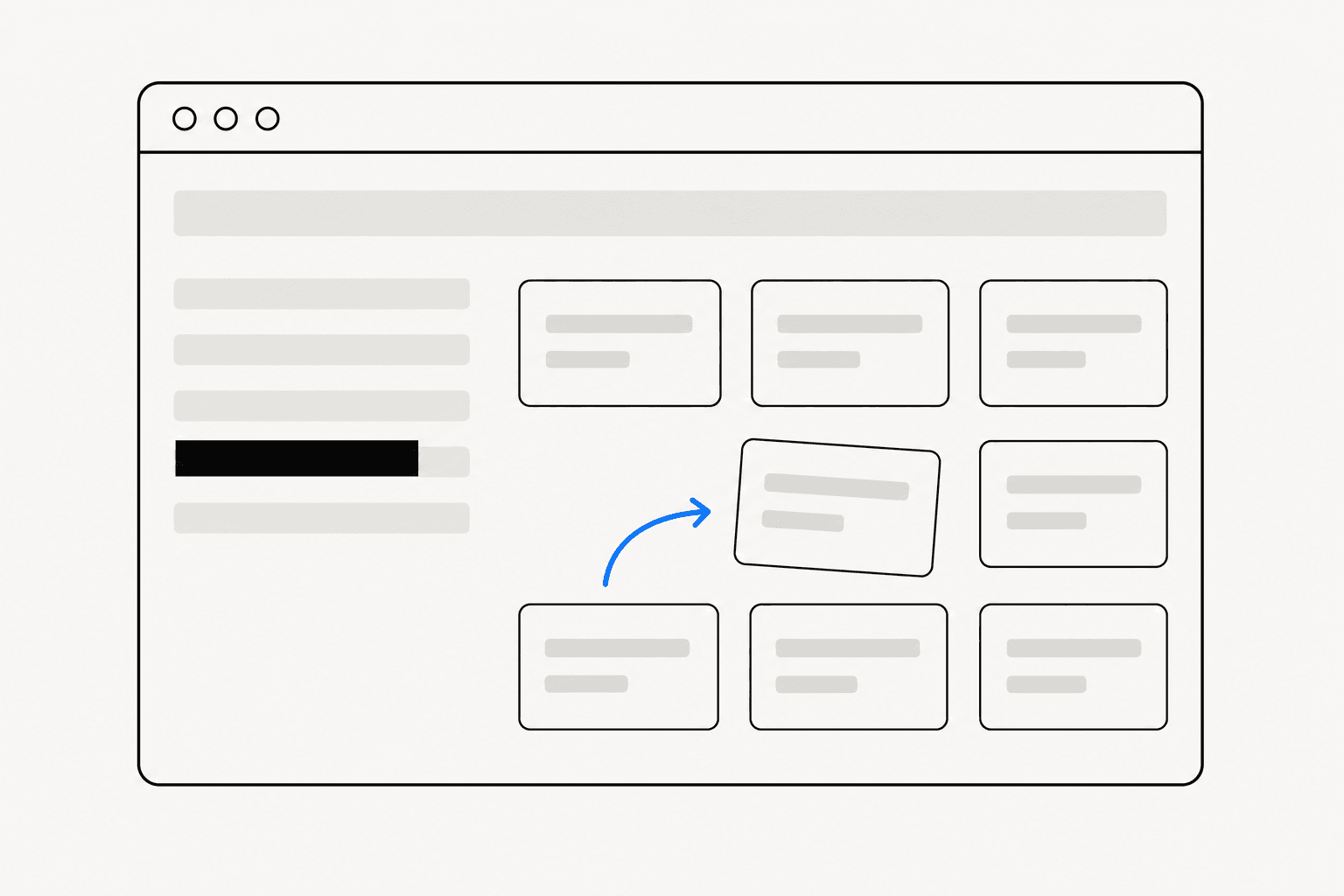
A bug report screenshot has one job: let a developer locate the defect in seconds, with enough context to reproduce it and nothing in frame that should never leave your team. Most bug report screenshots fail on at least one of these. They crop so tightly nobody can tell which page they show, or they capture a whole desktop where the defect hides among 40 tabs, or they ship a customer's email address into a tracker half the company can search.
The fixes are habits, not tools. Scope the capture to the bug. Mark exactly one thing. Strip anything private before you attach. Each takes seconds, and together they cut the most expensive phrase in triage: "cannot reproduce".
What developers need from bug report screenshots
Watch a developer triage an issue and the pattern is consistent. First they look for where: which page, which component, which state. Then what: the wrong value, the broken layout, the error text. Only then do they read your prose. A screenshot that answers where and what on sight moves the ticket straight to diagnosis. One that answers neither generates a clarifying comment, a day of latency, and a second screenshot anyway.
That gives you a concrete test before attaching: can someone who did not see the bug point at the defect within 2 seconds and name the page it happened on? If either answer is no, recapture or annotate.
A third requirement only surfaces when it goes wrong: nothing private in frame. Issue trackers are long-lived and widely readable — teammates, contractors, integrations, sometimes public issue pages. A screenshot with production customer data in it is an incident of its own.
Match the capture scope to the bug
Capture scope is the first decision, and it follows from the bug type more often than people treat it:
| Bug type | Capture scope | Why |
|---|---|---|
| Wrong value or broken state in one component | Element | Frames the component cleanly with nothing else in shot |
| Layout break across part of a page | Region | You control the boundary, so include the landmark that locates it |
| Error page, empty state, or anything where the URL matters | Visible page | The address bar and browser chrome are the context |
| Layout or CSS issue that spans scrolling | Full page | One stitched image beats 4 overlapping captures |
The failure modes sit at the extremes: a crop of a lone error message with no landmarks, and a 5120-pixel desktop capture where the bug occupies 2% of the frame. ReadyStill's capture modes map onto this table directly — click to choose an element, draw a region, grab the visible page, or run a full-page scroll-and-stitch capture (beta, stitched locally in the browser). For scrolling captures generally, including Chrome's built-in methods, see how to take a full-page screenshot in Chrome.
Mark one thing
An unannotated screenshot makes the developer hunt. An over-annotated one is worse: 3 arrows, 2 boxes, and a paragraph of overlay text tell the reader everything is important, which means nothing is. The discipline is one screenshot, one defect, one marker — file separate captures for separate bugs.
A single arrow is the default, and a tapered curved arrow reads better than a straight clip-art one because the thick end anchors the eye and the thin tip lands precisely. Use a box instead when the defect is a boundary problem — misaligned, overflowing, truncated — since a box shows extent where an arrow shows a point. When the surrounding UI is noisy, a spotlight highlight that dims everything except the defect removes the hunt entirely. Numbered step badges belong on reproduction sequences: 1, 2, 3 across the states that trigger the bug. ReadyStill ships all four — tapered arrows, box, marker, and spotlight highlights, and step badges — with red in the palette, which reads as "defect" by convention. The full patterns are in how to annotate screenshots.
Redact before it reaches the tracker
Bug screenshots get taken in production more than any other kind, because production is where the bugs are. That means real emails in account headers, real names in tables, tokens in query strings, internal URLs in the address bar. Every one of those travels with the ticket for years.
Two methods reliably destroy the information underneath: a solid bar and pixelation. A bar is right for text you can identify — an email, an ID. Pixelation suits regions where the reader needs to know something exists without reading it, like a populated customer table. Blur is not on the list; smeared text can often be reconstructed, as the redaction guide covers in detail. And leave the defect itself untouched — redacting over the evidence is a surprisingly common way to file an unusable ticket.
The usual failure is not carelessness but hurry, which is where ReadyStill's privacy review fits a bug workflow: it scans the capture locally for emails, phone-like values, and credential-like fields, suggests areas to redact, and shows a privacy count before export. All pixel processing happens in the browser and the screenshot is never uploaded — a property worth having when the screenshot is of production data.
Make the fast path the good path
A reporting habit survives only if it is faster than not having one. The benchmark worth aiming at is 60 seconds from noticing the bug to a finished attachment: capture at the right scope, place one marker, run the redaction pass, then copy the PNG to the clipboard and paste it straight into the ticket. Download the PNG instead when the tracker wants a file attachment.
Skip decorative framing for internal tickets — a bug screenshot needs clarity, not a launch look. The exception is a capture that will outlive the ticket: a public issue, a reply to the customer who reported it (see screenshots for customer support), or a changelog entry once the fix ships. Then the finishing steps in how to make screenshots look professional start to matter.
If you want the whole loop in one place, install ReadyStill — element, region, visible, and full-page capture, annotation, privacy review, and clipboard export inside Chrome, with 10 free exports to test it against your next real bug.
The pre-attach checklist
- One defect per screenshot; separate captures for separate bugs.
- Context in frame — page, component, or URL — so a stranger can say where.
- One marker: arrow for a point, box for a boundary, spotlight for noise, numbers for a sequence.
- Redacted: emails, names, IDs, tokens — bar or pixelate, never blur.
- PNG, pasted or attached, with reproduction steps written in the ticket — the screenshot shows state; prose carries the steps.
Five checks, well under a minute, and the ticket starts at diagnosis instead of interrogation.
Common questions
Should a bug report include a screenshot or a screen recording?
Use a screenshot when the bug is a state: a wrong value, a broken layout, an error page. Use a recording when the bug only shows over time, like a flicker or a race condition. Many tickets benefit from both — a recording for the sequence and one annotated screenshot developers can study at rest. ReadyStill handles stills only, so pair it with a recorder when motion matters.
How much context should a bug report screenshot include?
Enough that someone unfamiliar with the ticket can name the page and the component at a glance. Element or region captures suit component-level bugs; capture the visible page when the URL or browser state is part of the story. Avoid full-desktop captures — the defect should occupy a meaningful share of the frame.
Is it safe to attach production screenshots to a bug tracker?
Only after redaction. Trackers are long-lived and widely readable, so treat every capture of production data as if it will be seen outside the team. Cover emails, names, account IDs, and tokens with a solid bar or pixelation before attaching — blur can often be reversed and is not safe for text.
What format should bug report screenshots be in?
PNG. It is lossless, so UI text and 1-pixel borders stay sharp, and every tracker accepts it. JPEG compression adds artefacts around text that can obscure a rendering defect or mimic one. Copying a PNG to the clipboard and pasting it into the ticket is usually the fastest path.